Add a new crew user
Give a new crew member their own login to ProfeatSys Business Management. You add them once on the Users page. After that, they sign in with their Telegram username and a one-time code, so there's no password to remember.
Before you start
- You're signed in at profeatsys.com as the owner or an admin. Only they can add users.
- You have the crew member's Telegram username. They can find it in Telegram under Settings → Username, or create one there if they don't have one yet.
- You know their full name and position for the employee record.
Open the Users page
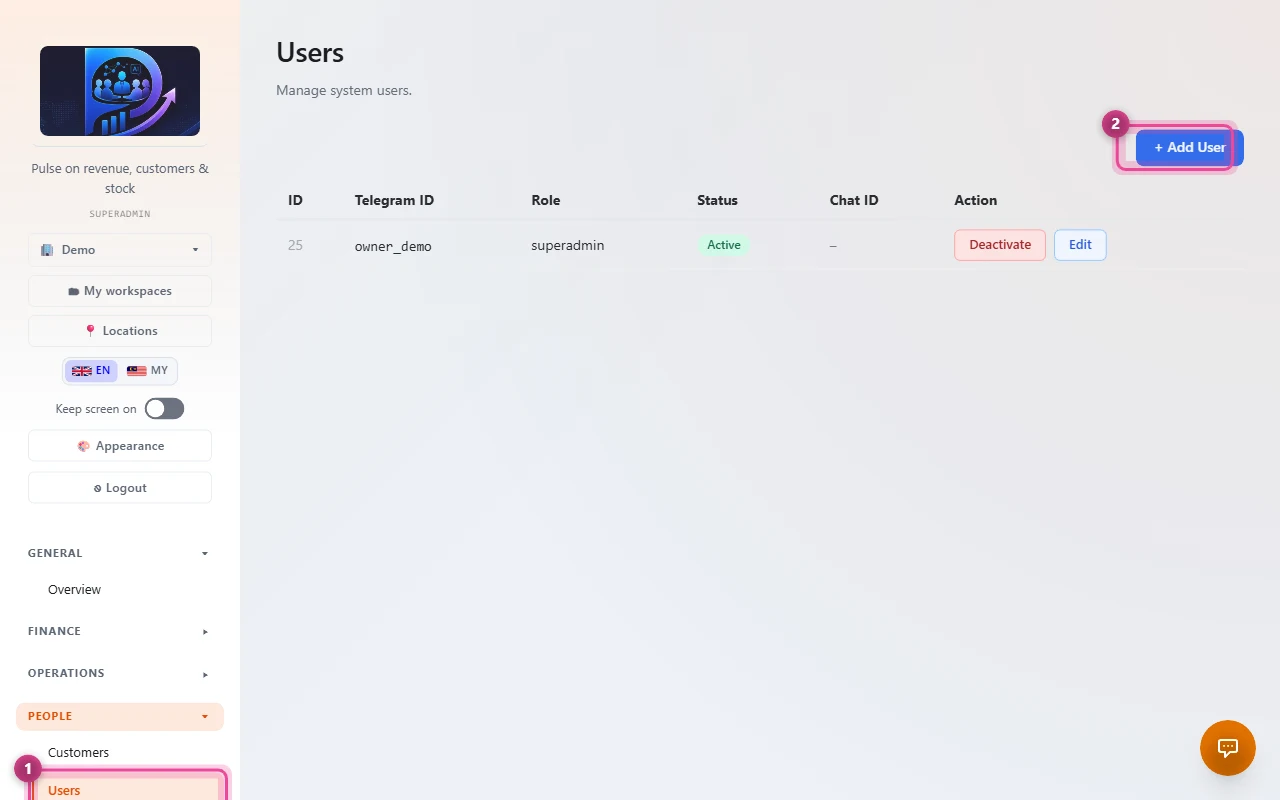
In the sidebar, under People, click Users 1. Then click + Add User 2 at the top right. The Add New User window opens on its first step.
Create their login
This is the account the crew member signs in with.
- Telegram ID Required
- Their Telegram username, e.g. ali_ahmad. A leading @ or a pasted t.me link is fine; it's removed for you. This is also the username they type to sign in.
- Role
- Choose Crew. Keep Admin for people who manage the business.
- Status
- Leave it on Active. An inactive user can't sign in.
- Chat ID (optional)
- Leave it blank. It's filled in when the crew member presses Start in the AiBizAdmin bot.
Click Next →.

Add their employee details
- Full Name Needed for crew
- e.g. Ali bin Ahmad.
- Position / Role
- Their job title, e.g. Barista or Cashier.
- Employment Type
- Full-Time, Part-Time or Contract.
- Date Joined
- Their first working day.
- The rest (optional)
- Address, Emergency Contact No., Typhoid Cert Expiry, Salary Account No., Salary Bank and Annual Leave Entitled (in days, e.g. 14). You can add these later with Edit.
Click Create. If the person already had a login, the button says Add to business instead.

Check that it worked
The window closes and a green New user created. message appears at the top of the Users page. For a person who already had a login, it says Added the existing person to this business. The crew member now appears in the list with role crew and status Active.
Made a typo? Click Edit on their row to fix the account or the employee details.
The crew member signs in
- On Telegram, open the AiBizAdmin bot (t.me/KRInternalLiveBot) and press Start. This links their Telegram so it can receive login codes. They only do this once.
- Check in for the shift with the bot. Crew can sign in only while they're checked in.
- Go to profeatsys.com, type their username (the Telegram ID from step 2) and tap Request Code.
- Enter the 6-digit code the bot sends on Telegram, then tap Verify & Login. The code expires after 10 minutes.
If something doesn't work
“Telegram not linked”, or the code never arrives
They haven't pressed Start in the AiBizAdmin bot yet, or they pressed it from a different Telegram account. Open the bot, press Start, then tap Request Code again.
“You are not on duty. Please check in first.”
Crew can sign in only while checked in. Check in with the bot first, then sign in again.
“User not found”
The username they typed doesn't match the Telegram ID you saved. Check the spelling on their row on the Users page, and fix it with Edit if needed.
They can't check in
Usually Full Name was left blank, so there is no employee record. On the Users page, click Edit on their row, fill in Full Name under Employee Details and save. Also make sure the Telegram ID is exactly their Telegram username.
“This person is already a member of this business.”
They're already on your Users list, so there's nothing to add. If they were deactivated, click Activate on their row.
A crew member leaves
Click Deactivate on their row. They can no longer sign in, and their past records stay.
Still stuck?
Message us and we'll sort it out with you.